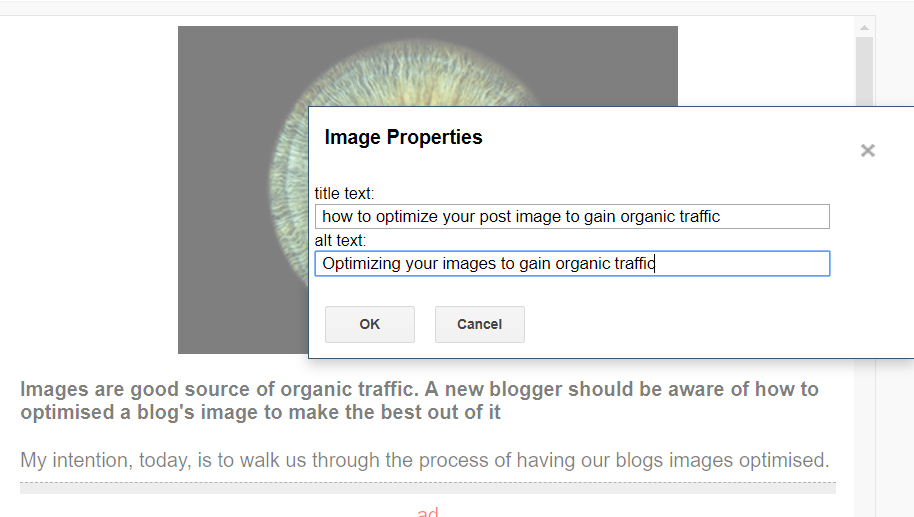
Images are a good source of organic traffic. A new blogger should be aware of how to optimise a blog’s image to make the best out of it: to increase organic traffic to your blog.
It is helpful because, even if your page may not be highly ranked on regular Google search, it may be ranked high on Google image search and still bring that treasured organic traffic.
I can attest to the positive impact of optimised image to blog’s traffic.
I have this other blog, which I started way back in 2015. I noticed at one point that I was gaining traffic from a combination of keywords. Initially, I thought it was hackers’ activity, not until I did a search using those keywords that I found that one of my images on the blog post was Google’s chosen image for those searches.
Having imbibed the practice of optimising my images, I have noticed that most of my images appear on Google image search, even where my page is not that highly ranked on regular Google search.)
Steps to optimize your images (with diagrams and illustrations)
The simple process of optimising blog’s images on Blogger:
1. Choose the image that best represents your blog post visually and rename the image to align with the topic of your post:
Once you have identified the image that suitably represents your theme, whether from the internet or otherwise, give it a name that aligns with the topic of your blog post (that is, a name, whether a word, phrase or clause, that best interpretes/describes the topic of that particular post or page).
Example, as in this case, any image I will be adding will have “optimising post image” or similar description as its name, and not a generic image.png or 20181110.jpg name
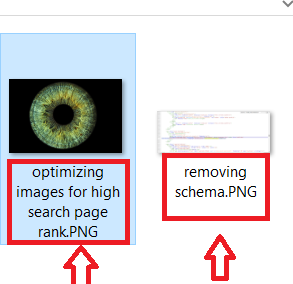
Naming your images to align with the topic of your blog post serves two purposes: first, it helps optimise the image; secondly, you take ownership of the image with respect to its appearance in Google search for your topic.
2. Populate the image properties appropriately:
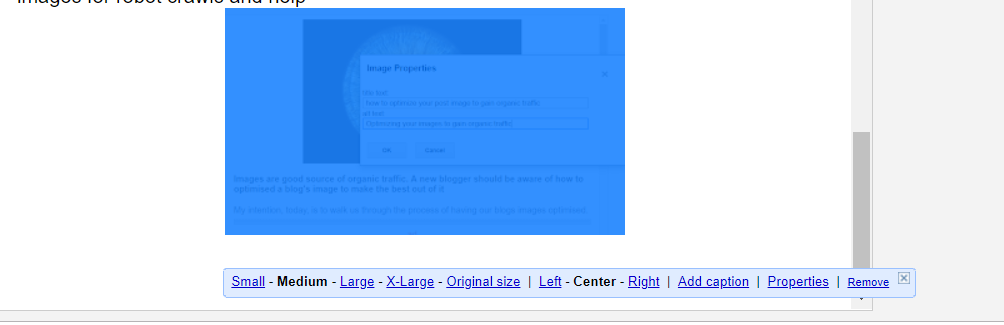
After uploading an image on blogspot hosted blog, you will see some options beneath it. Those options helps you choose your preferred size for the image (small, medium, large, extra large or the original size – usually I go for medium or large), the position of the image ( left, centre or right), the caption and the properties.
Click on the properties. Once done, it will bring out something that looks like the image below. Simply fill in the title text and the “alt” (meaning alternative) title. These describe the images for robot crawls and help search engine robot to identify your images appropriately.